How to Paper Trade on TradingView | Quberas
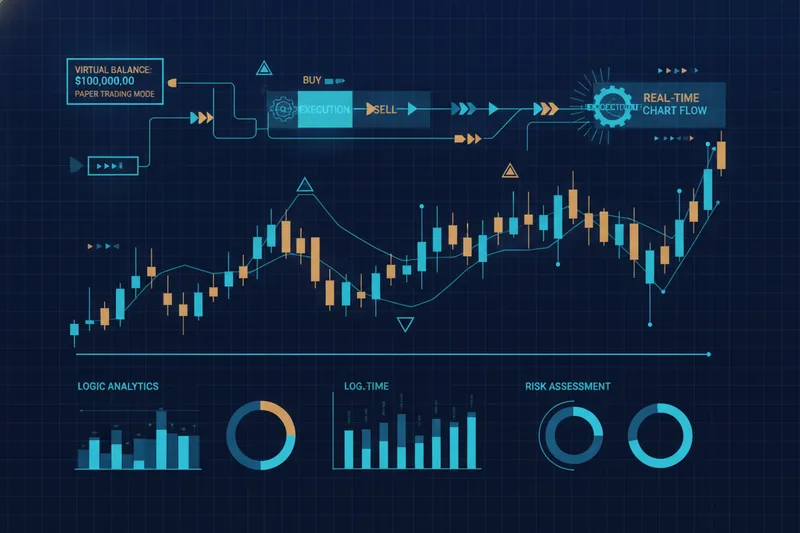
Yes, you can paper trade on TradingView — the platform includes a built-in paper trading mode that lets you place simulated orders with virtual funds directly on live charts, using real-time price data but no real money. It's accessible from the Trading Panel at the bottom of any chart, works on most subscription tiers, and mirrors the order types and execution flow of a live broker connection. Below is exactly how to set it up, what stops people from getting it working, and — just as important — what this kind of manual simulation can't tell you about a strategy's actual logic.
What Is Paper Trading on TradingView?
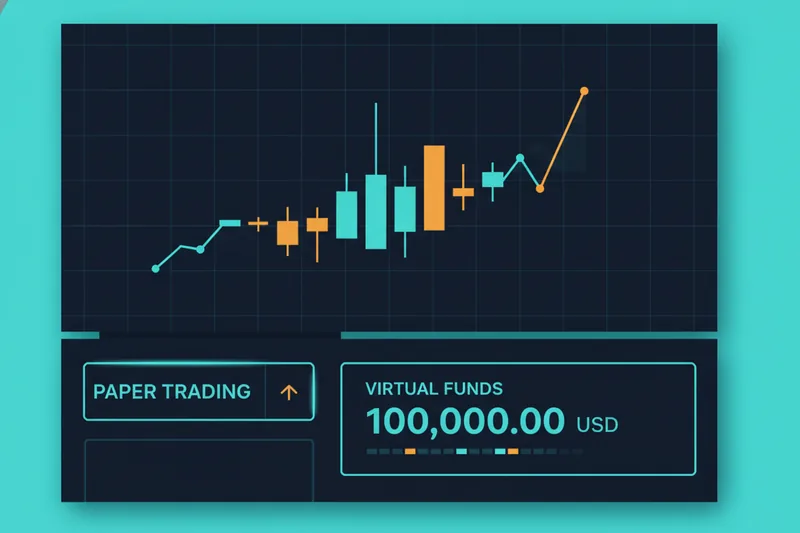
TradingView paper trading is a simulated trading mode built into the platform's chart interface. Instead of routing orders to a real brokerage account, it credits you a demo/virtual funds account — typically starting around $100,000 in simulated cash — and lets you buy and sell against live or delayed market prices as if the trades were real. Nothing here touches actual capital; it's purely a rehearsal environment.
The feature lives inside Supercharts, TradingView's main charting workspace, and is operated through the Trading Panel, a docked interface below the chart where you select your paper trading account, set order size, and place buy/sell orders with stop-loss and take-profit levels attached. To place a simulated trade, TradingView routes it through a broker connection — in this case, a paper trading provider rather than a live brokerage — which handles order matching and fills so the simulation behaves like a real execution environment rather than a static calculator.
This is worth naming plainly because it's also where the ceiling starts to show: paper trading records what happens when you click buy or sell. It has no concept of a rule — nothing here observes a moving average crossover and acts on it automatically. That gap is exactly the reason a platform like Quberas exists for traders who want to test not just their timing, but the logic behind it.
How to Activate and Set Up Paper Trading on TradingView
To start, open any chart in Supercharts, open the Trading Panel, and look for the paper trading account option in the broker/account selector. Selecting it activates a virtual balance immediately — there's no separate signup for the built-in simulator.
Connecting a Paper Trading Broker or Provider
TradingView's own paper trading account is available by default, but you can also connect a third-party paper trading provider if your broker offers a simulated environment through TradingView's broker integrations. This matters if you want simulated execution that matches a specific broker's fill behavior, spreads, or available instruments more closely than the generic built-in simulator does. The connection process is the same as linking a live brokerage: select "connect broker," choose the provider, and authenticate — the only difference is you're pointed at their demo endpoint rather than their live one.
Setting Leverage and Trade Size in Paper Trading
Once connected, the Trading Panel lets you adjust leverage and margin settings before placing an order — this controls how much simulated buying power you're using relative to your account size. Trade size is set the same way you'd set it live: by units, contracts, or a percentage of account equity, depending on the instrument. Because it's virtual capital, you can stress-test aggressive position sizing without consequence, but it's worth mirroring the leverage you'd actually use live — testing with 20x leverage when you'd never trade above 3x live tells you very little about how the strategy behaves in practice.
Is Paper Trading Free on TradingView?
Yes — TradingView's built-in paper trading is included at no extra cost across its subscription tiers, including the free plan, though free-tier accounts may face chart and data limitations that make active paper trading less practical. Third-party paper trading providers connected through TradingView may have their own account requirements or minimums, separate from TradingView's own subscription cost.
Why Can't I Paper Trade on TradingView? Common Setup Issues
Most "I can't paper trade" problems trace back to one of three things: broker/exchange restrictions, an account setup error, or a misunderstanding of what your subscription requirement actually covers.
Broker or exchange restrictions show up when a specific instrument — certain futures contracts or less common forex pairs, for example — isn't supported by the default paper trading provider, even though it's visible on the chart. Switching to the built-in TradingView paper account (rather than a connected third-party one) usually resolves this. Account setup errors are often as simple as not selecting the paper account in the Trading Panel before placing an order, so the panel defaults to a "connect broker" prompt instead of executing the trade.
Can You Paper Trade When the Market Is Closed or Without a Subscription?
You can generally still open the paper trading panel and place simulated orders when a market is closed, but fills may queue until the next session opens rather than executing instantly, since there's no live order book to match against outside trading hours. As for subscription level: the core paper trading feature doesn't require a paid plan, but restricted chart features, limited symbols, or data delays on the free tier can make it harder to simulate certain instruments accurately.
Paper Trading vs. Live Trading vs. Backtesting: What's the Difference
These three terms get used almost interchangeably, but they test fundamentally different things.
Paper trading is real-time simulation — you watch the market move forward, live, and manually decide when to click buy or sell, exactly as you would with real money, just without the financial consequence. It tests your discipline and timing, not your logic, because every decision still comes from you in the moment.
Backtesting is historical validation — instead of waiting for the market to move forward, you run a defined set of rules against past price data to see how those rules would have performed. This is where Strategy Tester functionality and algorithmic trading bots come in: a bot is a codified set of conditions (entry, exit, risk rules) that executes without a human clicking anything, and backtesting checks how that exact rule set held up historically. Both backtesting and forward testing (paper trading a defined strategy over time) are generally treated as necessary steps a strategy should pass before real capital is committed — neither one substitutes for the other.
Live trading is the final stage: the same logic, or the same manual decisions, executed with real capital and real slippage, fees, and emotional pressure that no simulation fully replicates.
The distinction that trips people up most: paper trading proves you can execute a decision. Backtesting proves whether the decision rule itself has merit. They are not the same test.
The Limit of Manual Paper Trading — and How to Turn Ideas Into Rule-Based Strategies
Here's the gap most guides skip: paper trading only ever tests the trades you manually chose to place, at the moments you chose to place them. If you paper-traded a moving-average pullback idea for three weeks and it worked, you still don't know if it was the rule working or your judgment filling in gaps the rule didn't cover — deciding not to take a signal because "it didn't feel right," or exiting early on a hunch. That's not a flaw in TradingView's paper trading; it's simply outside what real-time manual simulation is built to measure.
Turning that idea into something testable means codifying it — defining the entry condition, the exit condition, and the risk rule explicitly enough that they trigger the same way every time, with no judgment calls in between. That's the category of tool automated trading platforms occupy, and no-code/low-code builders are one recognized way to construct that logic without writing a script from scratch.
This is the exact problem Quberas is built around. Instead of writing code, you construct the strategy as a deal map — a visual layout of entry, averaging, exit, and stop-loss conditions connected stage by stage, the same way you'd sketch a trading plan on paper, except each stage is a live rule instead of a note. A no-code strategy builder lets you assemble those conditions — price levels, indicator crossovers, volume thresholds — using a puzzle-style condition system rather than syntax. And because a paper trade never shows you why a trade did or didn't fire, Quberas' visual debugger highlights the exact chart zone tied to each condition, including near-misses where a rule almost triggered, so you can see whether your logic is too loose, too strict, or working exactly as intended — then backtest that same logic against historical data before it ever touches live capital.
FAQ: Paper Trading on TradingView
Can I paper trade on TradingView? Yes. It's a built-in feature accessible through the Trading Panel on any chart, using a virtual funds account rather than real money.
Can you paper trade on TradingView for free? Yes, the core paper trading feature is available on TradingView's free plan, though chart and data limitations on lower tiers can restrict which instruments you can simulate comfortably.
Is paper trading free on TradingView, or does it require a paid subscription? It doesn't require a paid subscription to use. A subscription mainly affects data access, chart limits, and connected broker options, not access to the paper trading feature itself.
Can you paper trade when the market is closed? You can typically place simulated orders, but fills may not process until the next live trading session, since there's no active order book to match against while the market is shut.
Once you've paper-traded your idea manually and confirmed the concept has legs, the next step is building that same logic visually in Quberas and backtesting it against historical data — no code required, and with a debugger that shows you exactly why each trade would or wouldn't have triggered before you ever risk real capital.